As a Panel Member, you can review submitted performance plans and add notes to document your observations. This guide covers what you can do, what is restricted, and how to access plans assigned to your panel.
Your Role at a Glance
| Action | Panel Member |
| View submitted plan (ratings, narratives) | Yes |
| Add Calibration Notes | Yes — with restrictions (see below) |
| Read notes after release | No — unless you are also a Rating or Reviewing Official for this plan |
| Add or edit General Notes | Yes — under normal permissions (see below) |
| Change ratings | No |
| Move plans between states | No |
| Release plans | No |
| Sign the plan | No — not authorized via this role |
How to Review a Plan
- Sign in and open the Dashboard task for your panel and appraisal year. Select it to open the Calibration Plans list.
- Find a plan marked Finalize Calibration or Ready for Release. Plans marked Pending Preliminary Rating have not been submitted yet; plans marked Calibration Done are complete history.
- Select View plan. As a Member (without Chair designation), you will always see View plan. This opens the submitted plan in read-only mode.
- Review the ratings, narratives, and supporting information. You can see the preliminary ratings entered by the Rating Official and any narratives permitted for your viewing.
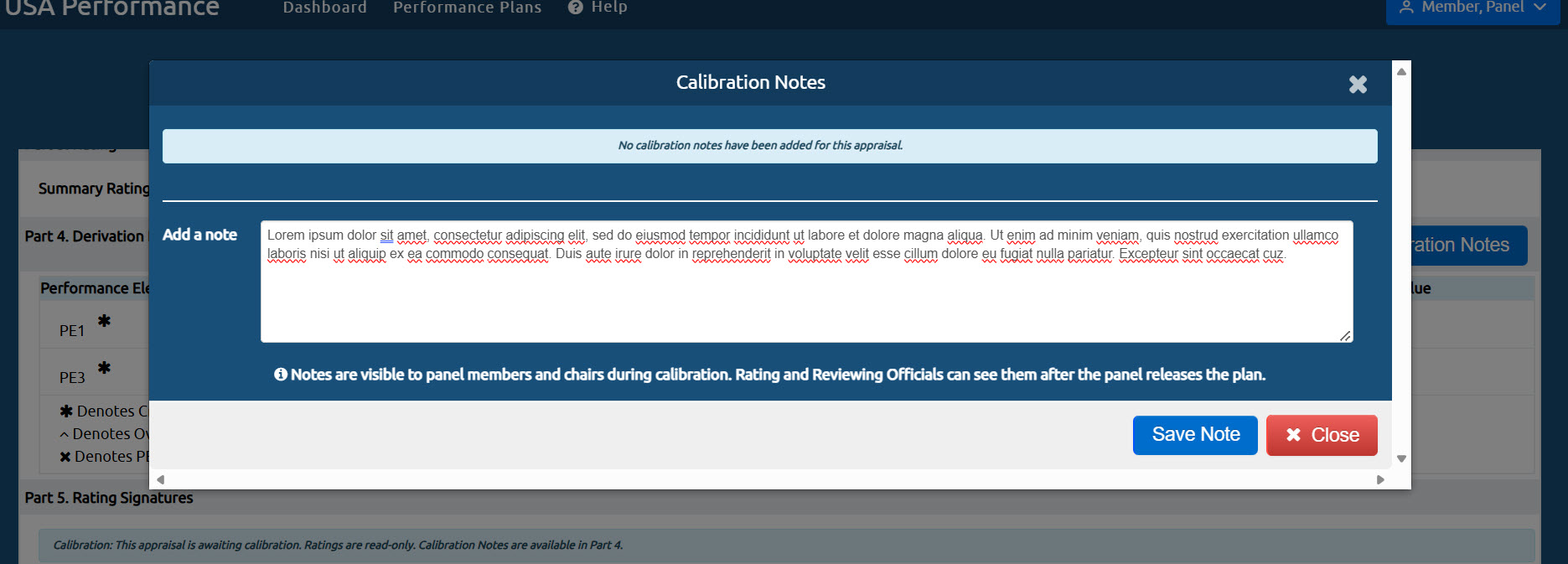
- Add a Calibration Note (if authorized). Where permitted, select Calibration Notes beside Part 4. Enter your note (up to 4,000 characters) and select Save Note. Reopen notes to confirm your entry saved — notes show the author, panel role, panel name, and timestamp.
Calibration Note Access Restrictions
Not all panel members can read or add Calibration Notes on every plan. These restrictions apply regardless of your panel role:
- You cannot read or add notes on your own plan, even if you are a panel member.
- If you are a primary or secondary Rating or Reviewing Official for a plan, you cannot read or add that plan's Calibration Notes before release. After release, your official relationship provides read-only access.
- A second role does not remove these restrictions.
|
What Calibration Notes look like Each note displays the author's name, their panel role (Member or Chair), the panel name, and the date and time the note was saved. Calibration Notes are not visible to the employee on their own plan under any circumstances. |
General Notes and Progress Review Notes
General Notes are separate from Calibration Notes and have different access rules:
- Members and Chairs may add General Notes and edit their own General Notes under normal permissions.
- Members and Chairs cannot edit another author's General Note.
- Progress Review Notes retain their normal read permissions — they are not gated behind release.
- Do not confuse General Notes or Progress Review Notes with Calibration Notes, which are release-gated and governed by the restrictions above.
Assignment Changes and What They Mean for Notes
If your panel assignment changes during a review:
- Plain unassignment removes your panel-based access, including access from an already-open page. Saved work is retained. On reassignment, the receiving panel inherits the same cycle's saved ratings and Calibration Notes; your role on that panel determines your access.
- Exemption ends the active cycle. After reassignment and a new Rating Official submission, previous-cycle Calibration Notes and drafts do not return as active work, even on the same panel. Backend history is retained.
After Calibration Is Complete
Once a plan has been released (Calibration Done):
- Membership alone no longer opens the plan or its notes. You need another authorized relationship (such as being the Rating or Reviewing Official) to access it after calibration is done.
- The completed row remains in the panel's history list.
- If you are a Rating or Reviewing Official, you can read notes after release through your official relationship.
Admin Access Is Separate
An administrator who is also a panel Member retains any independent authorized plan-viewing access when a plan becomes inactive. Panel membership alone does not provide access to inactive submitted work or released plans, and neither role bypasses signature-removal restrictions after submission.
|
Confirm your notes saved After saving a note, reopen the Calibration Notes panel to verify it appears in the list. If a note does not appear, try reopening the section once before entering it again. If the problem persists, contact the Help Desk. |
|
Next Steps
Need help? Submit a Help Desk ticket |